
How to List an Item and Rent It Out on BorrowBuddy
Your camera, tools and camping gear could be earning money. Here's how to list an item on BorrowBuddy in a few minutes.
By BorrowBuddy Team
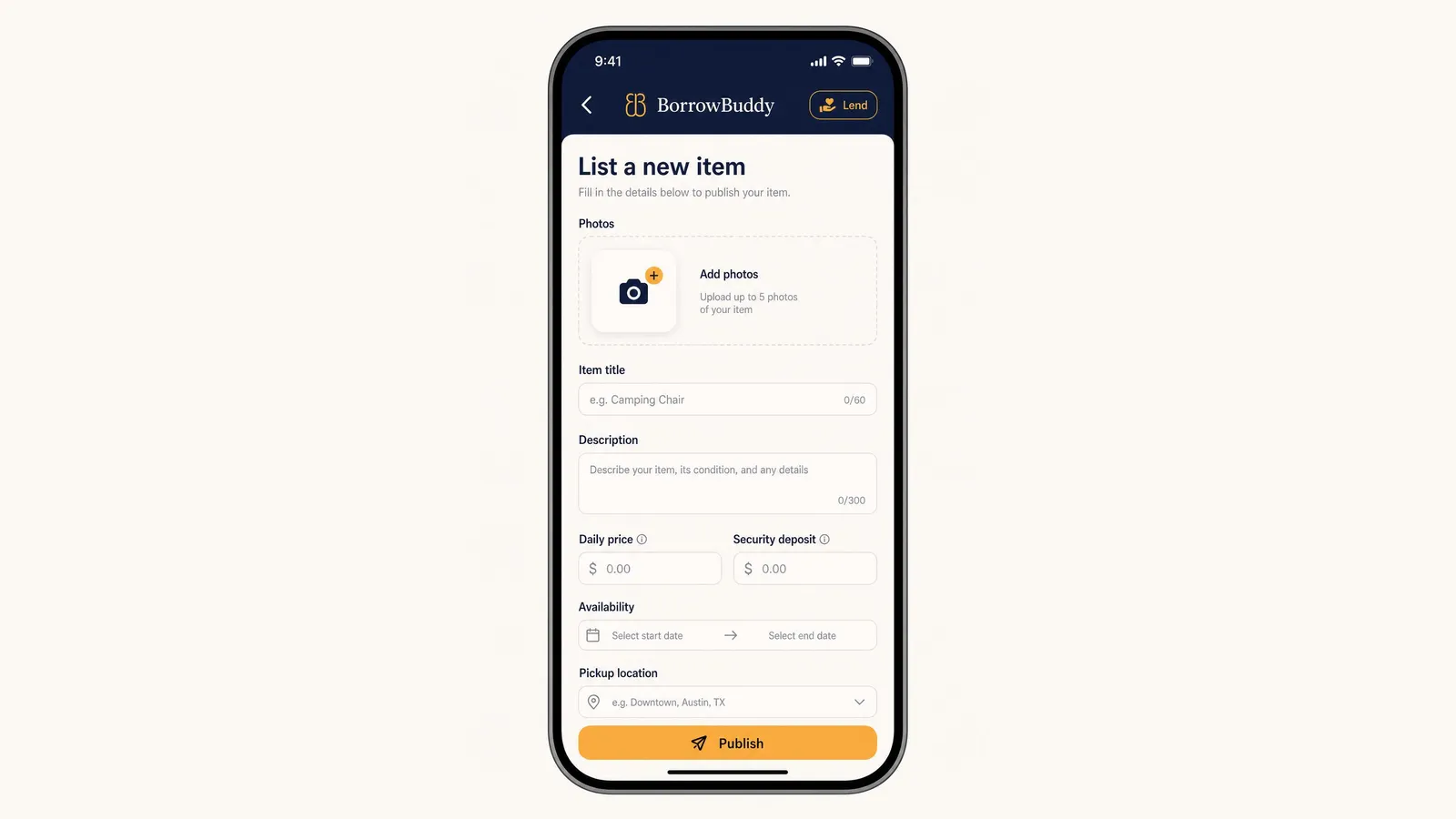
If you've been looking for a rent out my stuff app, BorrowBuddy lets you earn from things you already own by lending them to verified people nearby. Listing an item takes just a few minutes. Here's how.
Don't have the app yet? Download BorrowBuddy on Google Play.
Step 1: Start a new listing
Tap Add Item in the bottom menu (or the Lend option). You'll see "List a new item — Fill in the details below to publish your item."
Step 2: Add photos
Upload up to five photos of your item. Good photos get more requests:
- Use natural light and a plain background.
- Show the item from several angles.
- Include any accessories that come with it.
- Show any wear or scratches honestly — it prevents disputes later.
Step 3: Write a clear title and description
- Item title: keep it specific — "Canon EOS Rebel T7 with 18–55mm lens" works better than "Camera."
- Description: explain the item, its condition and anything a borrower needs to know, such as what's included, how to use it and any rules (for example, "indoor use only" or "return fully charged").
Step 4: Set your daily price and security deposit
- Daily price: what you'll charge per day. A good starting point is a little below what a store would charge for a short rental, if one exists.
- Security deposit: optional, but sensible for valuable or fragile items. It encourages careful, on-time returns.
For more pricing ideas, read how to rent out your stuff safely.
Step 5: Choose availability and pickup location
- Availability: pick the start and end dates when the item can be borrowed. Block out dates when you need it yourself.
- Pickup location: set a general area for handovers. Public or familiar places are a good choice for first-time borrowers.
Step 6: Publish
Tap Publish. Your item is now visible to verified members nearby.
Managing requests
When someone requests your item:
- Check their profile and trust score before you accept.
- Accept, decline or suggest new dates — you're always in control.
- Agree on pickup details by message.
- Photograph the item together at handover and again at return.
Rental fees and deposits are handled in the app, not in cash. Learn how protected payments work.
What rents well?
Tools (pressure washers, drills, ladders), cameras and lenses, camping gear, party equipment (speakers, projectors, tables) and kids' gear are all popular. See more ideas on our Lend & Earn page.
The bottom line
List it once and let it earn: add great photos, write an honest description, set a fair daily price and deposit, choose your dates and publish. Download BorrowBuddy on Google Play and list your first item today. On iPhone? Join the waitlist.
Related feature
Lend & EarnRent out the things you already ownLearn moreFrequently asked questions
How do I list an item on BorrowBuddy?
Tap Add Item, upload up to five photos, add a title and description, set a daily price and optional security deposit, choose availability dates and a pickup location, then tap Publish.
How many photos can I add to a listing?
You can upload up to five photos of your item.
Should I charge a security deposit?
It's optional, but a good idea for valuable or fragile items because it encourages careful, on-time returns.
Can I choose who borrows my item?
Yes. You review each request and the borrower's profile and trust score, then accept, decline or suggest new dates.
Keep reading
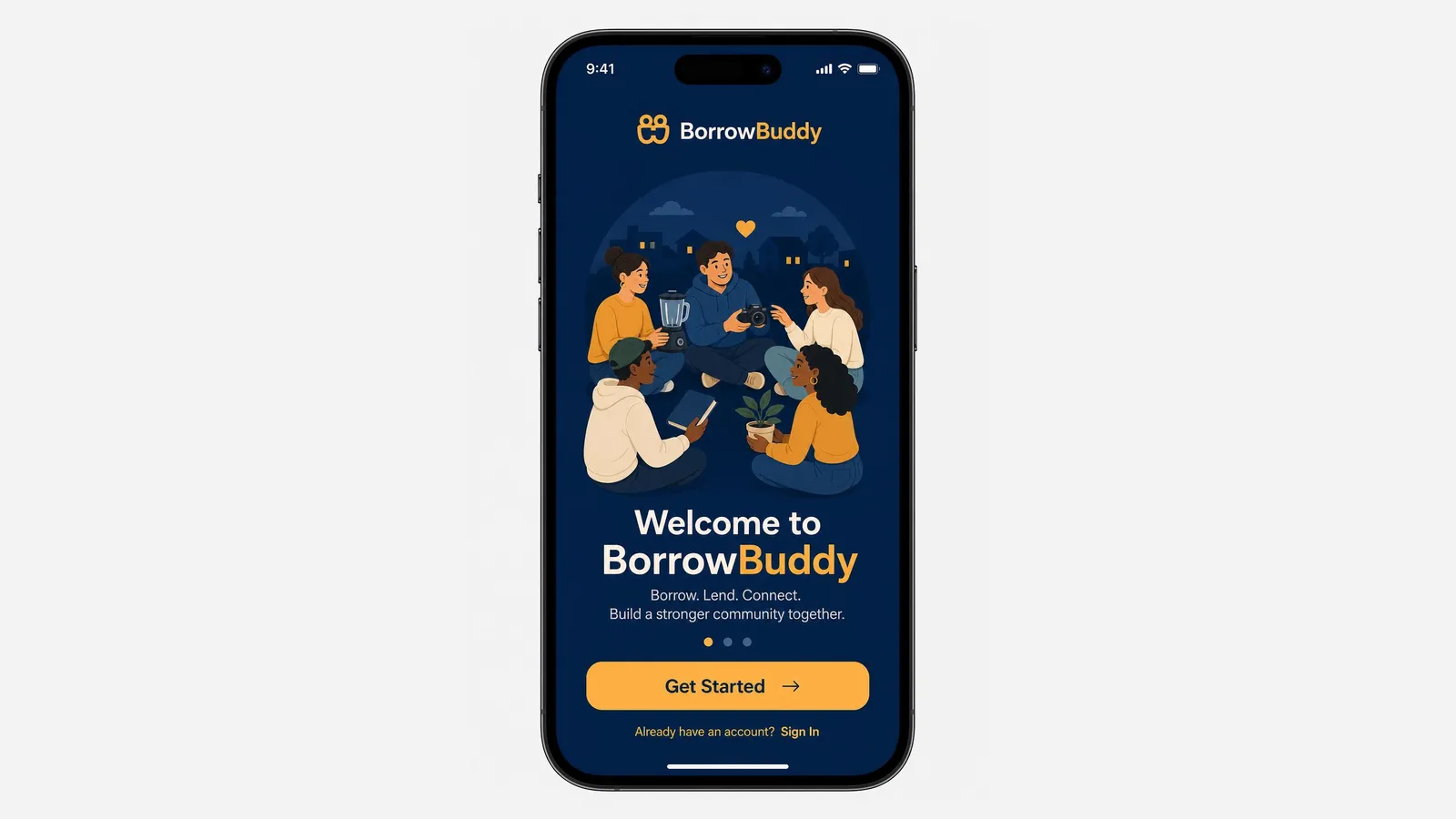
How to Get Started With the BorrowBuddy App: Download, Sign Up and Set Up
BorrowBuddy is now on Google Play. Here's a quick walkthrough from download to your first borrow, lend or swap.
Read more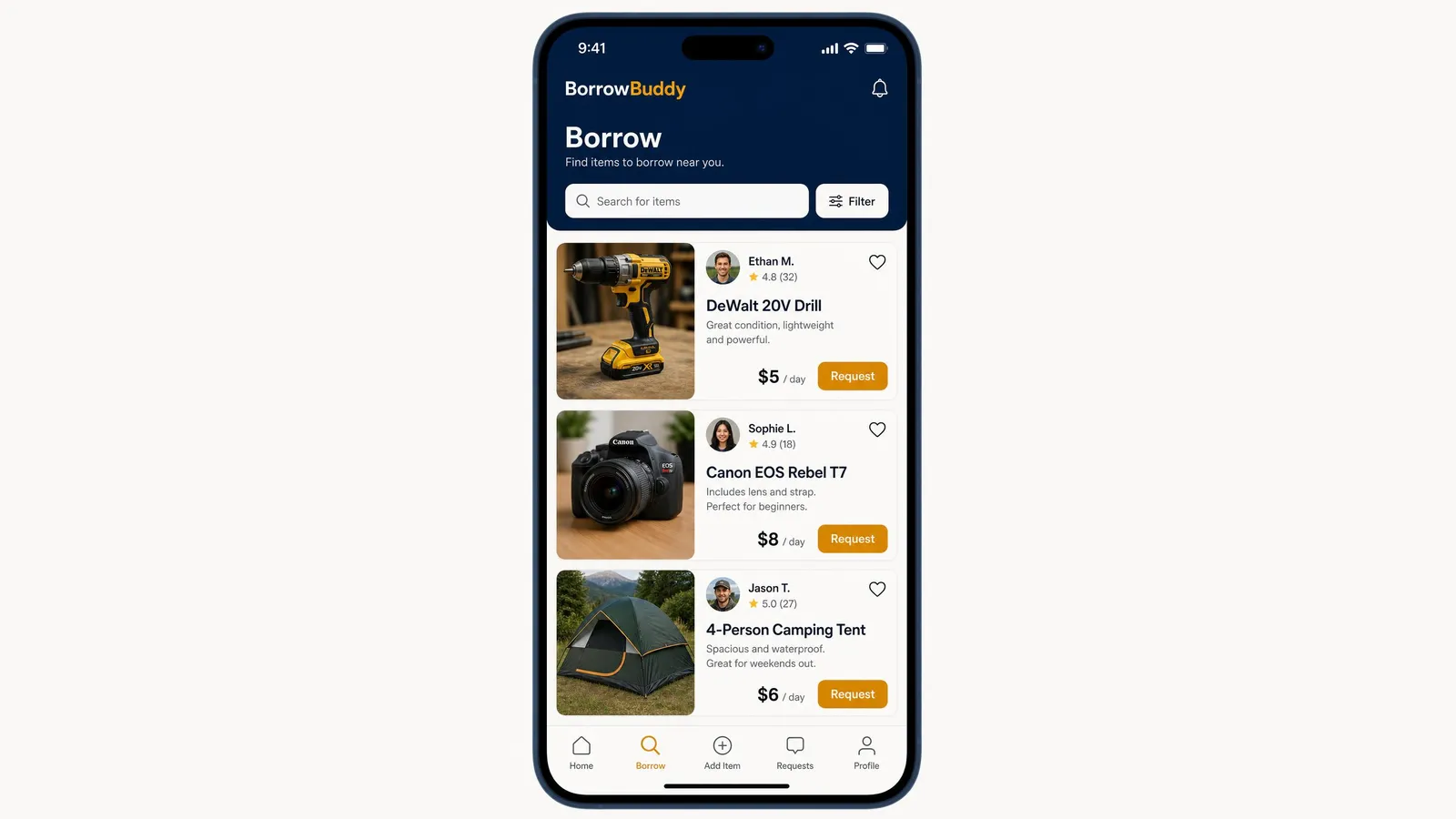
How to Borrow Items From Neighbors on the BorrowBuddy App
Need a drill, a camera or a tent for the weekend? Here's exactly how borrowing works in the BorrowBuddy app.
Read more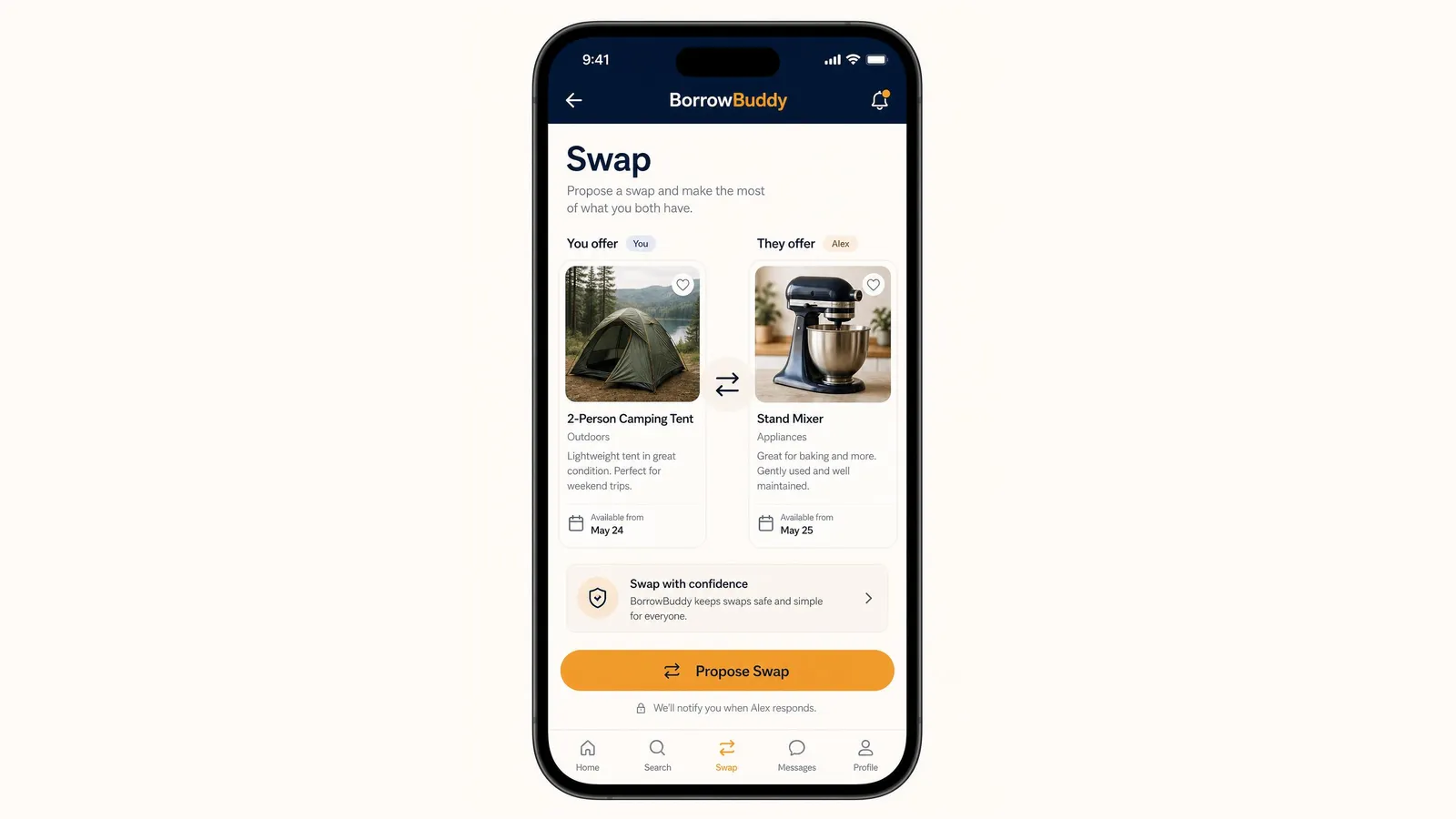
How to Propose a Swap on BorrowBuddy (Trade Items Without Cash)
A tent for a stand mixer? Here's how swapping works in the BorrowBuddy app — from choosing items to completing the trade.
Read more